Set the table kids. This will be ready in a jiffy 💥
Strengthen connections with your most loyal visitors by skipping irrelevant email popups and offering something that truly matters—a personalized experience just for them. By tailoring their experience and eliminating unnecessary steps, you make it easier for them to engage, boosting satisfaction and increasing the likelihood of a class registration.
This targeted approach not only reduces frustration but also fosters long-term loyalty, leading to better sales and higher customer lifetime value.
Recipe Details
- Level: Easy
- Time: 5 min
- Yield: CLVT, CVR, CTR
- Category: Loyalty
Rules Used
- Geolocation rule type
Sections Required
- Popups (using Fluroescent's Stiletto theme for demo)
Note: You can substitute the popup for any other popup section. Boom!
Recipe Goal
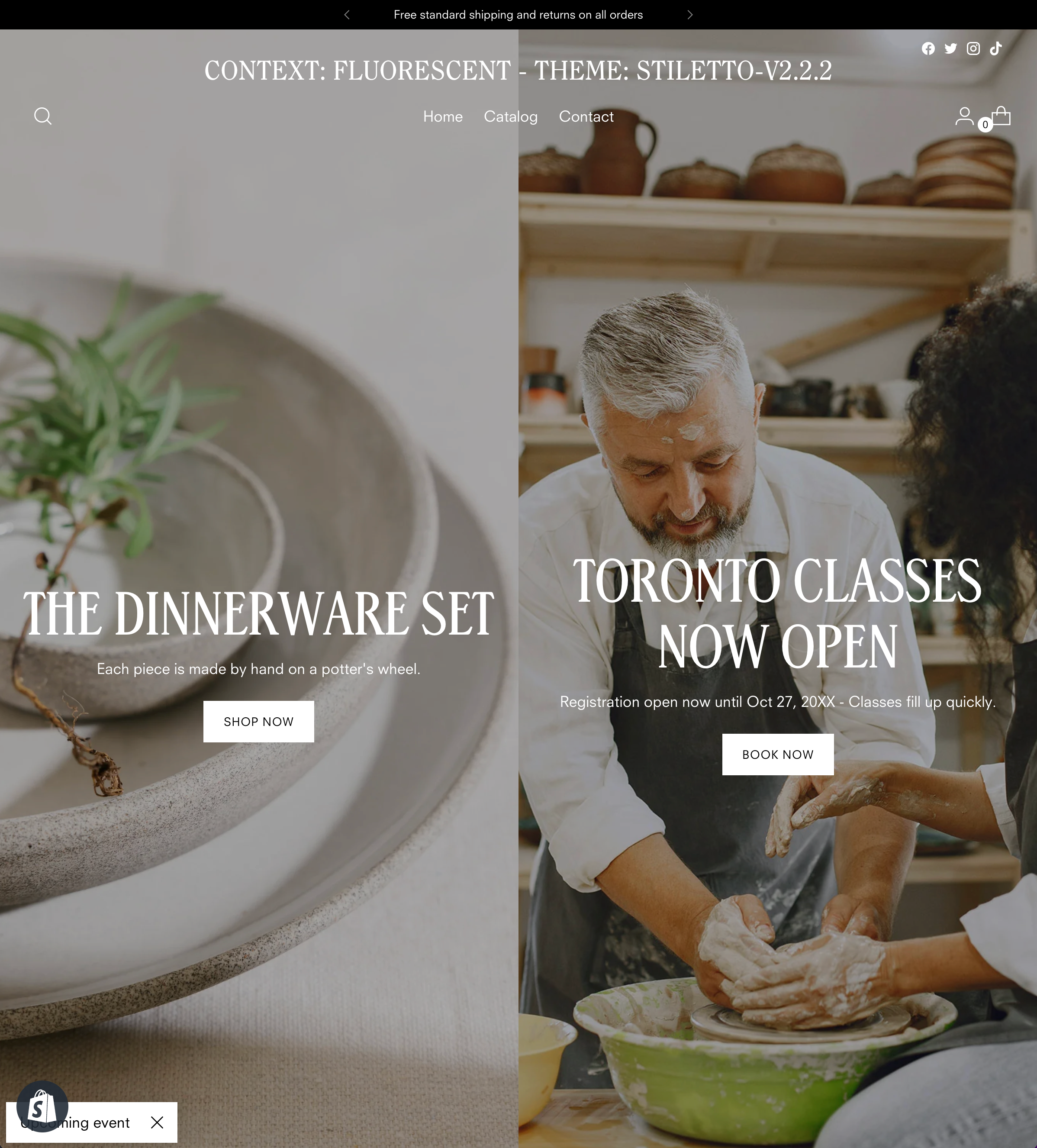
Popup for a general audience

Popup for visitors from Toronto

Implementation Steps
Step 1 - Start by adding the "popup" section type to your theme if it's not already there.

Step 2 - In Context select the "Create recipe" button.

Step 3 - Give your new recipe a unique name. We're going to use "Toronto customers".

Step 4 - By default, you'll be dropped on the rules page, where you create the conditions for your visitors to be displayed content relevant to them. In our case, we want to display a different "popup" to visitors from Toronto. Start by selecting the "Create a rule" button.

Step 5 - Select the "Geolocation" rule type.

Step 6 - Type in the location that you want this banner to display to. In our case we're going to display it to visitors from Toronto.

Step 7 - Once you've created the audience rules, select the "Content variations" tab so you can create and/or select the content this audience should see once the rules are run. Depending on where you added the "popup" section, you should select the appropriate template it's been added to. In our case it's been added to the "Overlay" template.

Step 8 - Once on the correct template, you should see your "popup" section in the same order as it is on your theme. Select the "Add content" or "+ Variation" button to whip up your new variation.

Step 9 - Give your variation a unique name. In our case we're calling it "Toronto registration - Get notified".

Step 10 - Once you've create the variation and opened it in the theme editor from the modal, you'll be presented with all the properties you have in your theme for this section type. Given that we want to add an email signup form, we're going to add a new block called "Countdown signup popup". We're also going to delete the "Classes now open" block.

Step 11 - Add a pinch of creativity and create your new variation. Once you're happy, save the variation and close the tab.

Step 12 - Now that you've created your new variation, select it and remember to hit save. Your new recipe is now ready to be displayed to your visitors from Toronto.

Step 13 - After saving, preview your banner using the big green preview button.


Summary
Build your email list by offering up tailored popups!
With just a few simple steps, you've created a new popup variation that automatically shows a registration form specifically for visitors from Toronto. This reduces the frustration of having to search for local class times, streamlining their experience. Plus, by offering a tailored notification option, you're more likely to capture their interest, helping grow your list of potential customers.
Once saved, preview your changes using the big green preview button.
Pro Tip: Regularly review and optimize your popups to ensure they remain aligned with your audience's preferences. Keeping content fresh and relevant is a proven way to drive engagement and boost conversions over time.
Share your success! Show us how your personalized popups made a difference by tagging #ContextResults on socials.